
Moving a WPBakery Site to Elementor Without Rebuilding Every Page
What Logicfire Migration Toolkit for Elementor actually converts, what it keeps safe, and how the migration goes in practice.
What It Actually Does
Anyone who’s inherited a WPBakery site and been told to “just move it to Elementor” knows the feeling. WPBakery keeps everything as shortcodes inside post_content. Elementor wants clean, structured JSON. There’s no shortcut between the two, so a supposedly quick migration turns into weeks of rebuilding pages one by one, by eye.
This plugin reads the WPBakery shortcodes already sitting in your posts and pages, works out what each one is meant to be, and rebuilds it as a real Elementor layout you can open and edit normally. WPBakery doesn’t need to stay installed afterward.
It also handles Ultimate Addons for WPBakery, which is usually where migration tools quietly give up. Around thirty Ultimate Addons elements get mapped to a matching Elementor widget, Pro widgets included where they apply. A few things genuinely have no match, like certain hotspots, carousels, or timelines. Those don’t just disappear. They get kept as an Elementor Shortcode widget so the content is still there, even if it needs a manual pass later.
Two Ways to Migrate, Not Just One
Most tools assume everyone wants the same result: shortcodes in, Elementor layout out. This one gives you a second option.
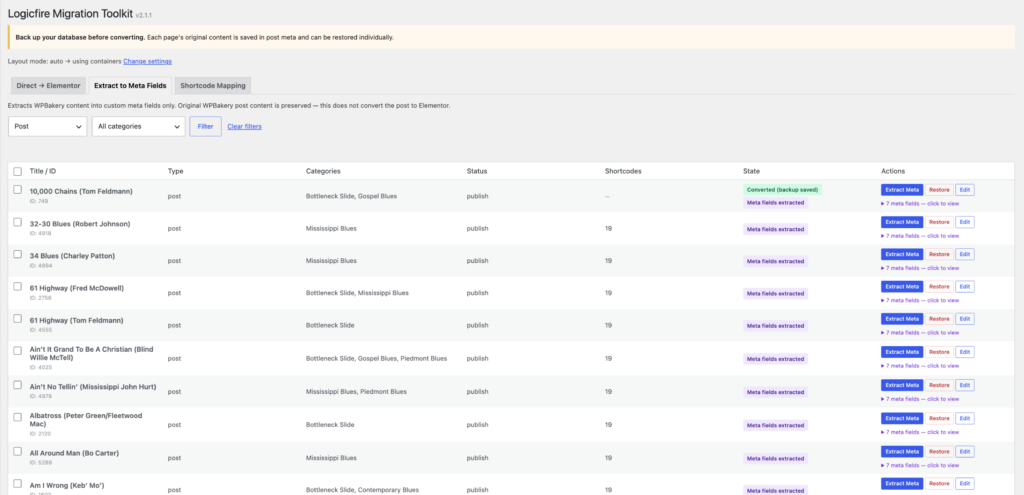
Instead of a full layout conversion, you can extract content straight into custom post meta fields (prefix is configurable, defaults to _wpb_) while the original WPBakery content stays exactly where it is. That matters if you’re building Theme Builder templates or dynamic single post layouts, where what you actually want is raw data in meta fields rather than a locked design.
The plugin also registers a “WPBakery Fields” group of dynamic tags, so anything extracted shows up right inside Elementor’s own dynamic tag picker.
It Won't Force You Into One Layout Style
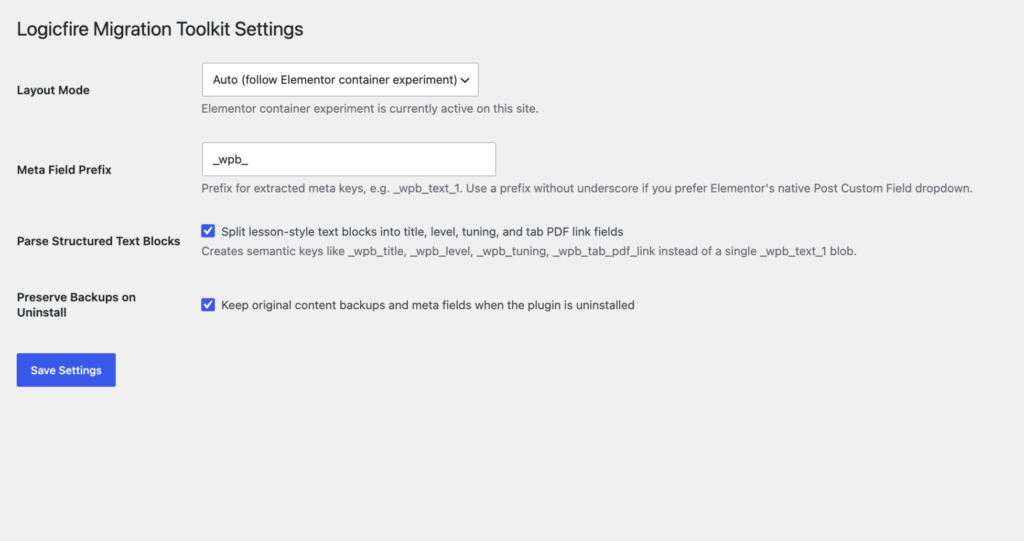
Elementor has been shifting from the old sections and columns model to flexbox containers, so depending on when a site was built, it could be running either one. Three layout modes cover both:
- Auto, which just matches whatever the site’s current Elementor experiment settings already are
- Force Containers, for a fully flexbox rebuild
- Force Sections/Columns, for the older, classic structure
Column widths snap to the grid sizes Elementor actually supports, and responsive widths use Elementor’s own tablet and mobile controls. The result behaves like something someone built by hand in Elementor, not an import that’s slightly broken on a phone.
The Shortcode Mapping Is Yours to Edit
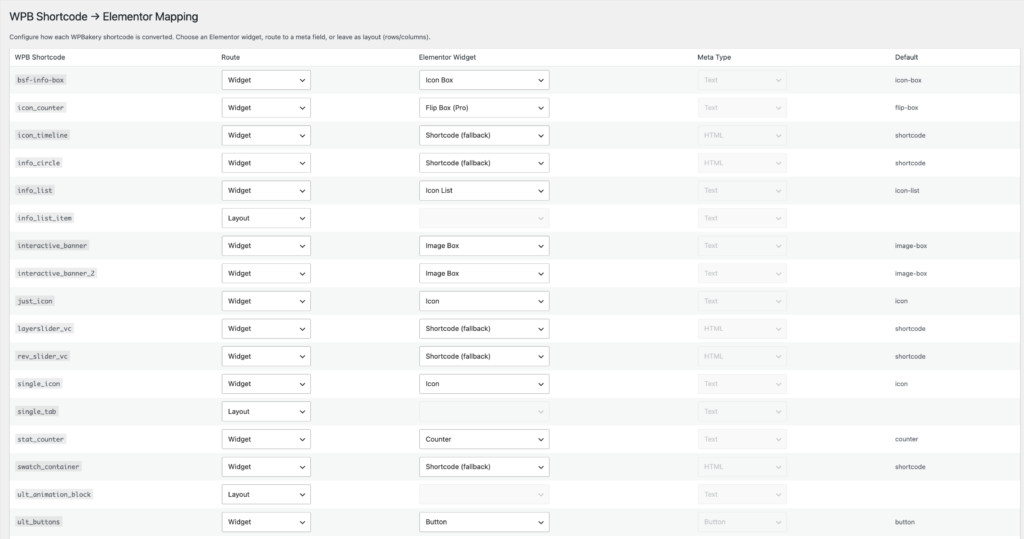
Under Tools, Shortcode Mapping, every shortcode the plugin recognizes (core WPBakery, Ultimate Addons, standard WordPress widgets, a few common third party sliders) can be reassigned to a different Elementor widget. Set it up once and it applies to every conversion after that. Reset back to the defaults any time with one click.
Anything the plugin doesn’t recognize isn’t just skipped. It falls back to an Elementor Shortcode widget automatically, so nothing gets quietly lost during a batch run.
Nothing Here Is a One Way Trip
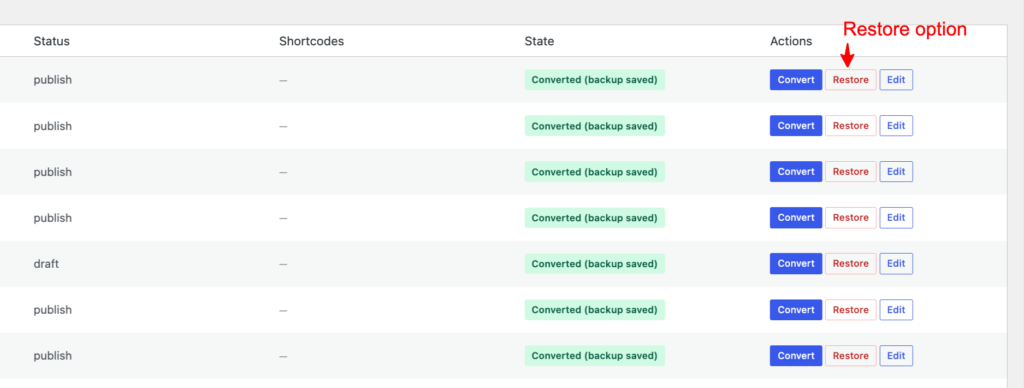
Before any page is converted, the original content gets backed up to post meta first. That’s what makes the restore button on the Tools screen actually mean something. You can restore a single post, or select a batch and restore all of them together.
There’s also a setting to keep those backups (and any extracted meta) around even after the plugin itself is uninstalled, for teams who’d rather the safety net stick around longer than the tool does.
Built for More Than One Page at a Time
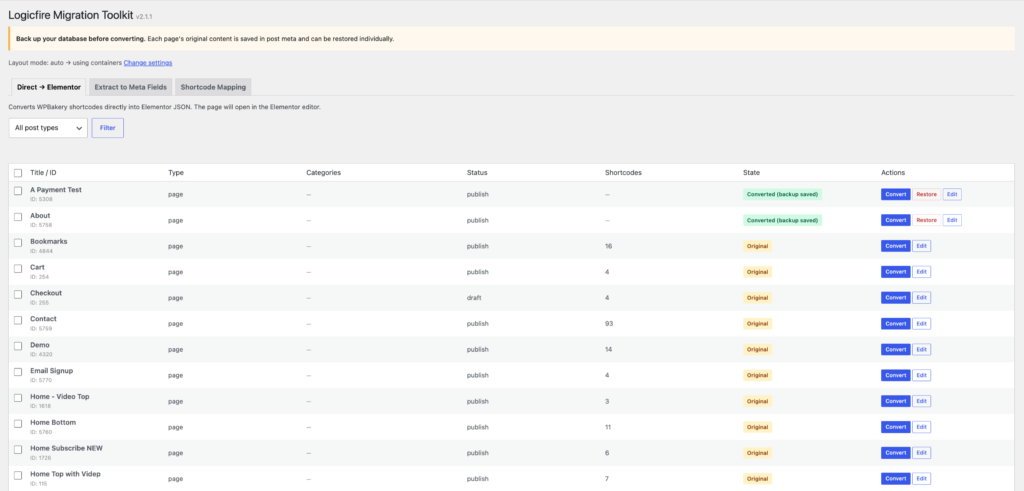
Once you’re past a handful of pages, a list table shows which posts still contain WPBakery or Ultimate Addons shortcodes, which ones are already converted, and which converted pages still have a backup sitting behind them. Filter by post type or category, then run bulk actions like convert, extract to meta, or restore, with progress shown as it works through them.
For anyone scripting a rollout, WP-CLI is built in too:
wp wpb2el convert --post_ids=12,34
wp wpb2el convert --all
wp wpb2el convert --all --mode=meta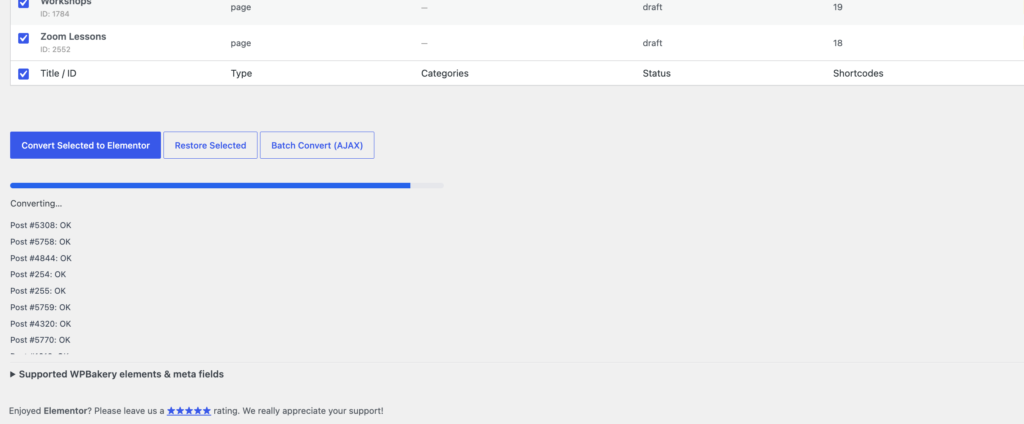
The Small Details That Actually Save Time
Font Awesome 4 icon classes get remapped to their FA5 equivalents automatically. Google Maps embeds carry over as iframes when that’s needed. Multi bar progress elements split into separate Progress widgets instead of collapsing into one messy block. Image galleries and carousels convert into the array format Elementor’s Gallery control expects. WordPress widgets map to Elementor’s own wp-widget-{id_base} types. And if a post somehow ends up with a null post_content after conversion, the plugin fixes it on its own instead of leaving a broken page live.
Every action that matters checks nonces and manage_options, so a lower level account can’t trigger any of this by accident.
What an Actual Migration Looks Like
- Install Elementor and the Migration Toolkit
- Back up the database first, no skipping this
- Open Tools, Migration Toolkit
- Set the layout mode and adjust shortcode mappings if you need to
- Filter to find candidate pages, convert one as a test, and check it over in Elementor
- Batch convert the rest, or extract to meta if you’re building around Theme Builder
- Restore anything that didn’t turn out right and try again
- Deactivate WPBakery once you’re happy with the result
Where It Has Limits
Worth being upfront about this: not every shortcode has a clean Elementor match. Some content lands as a Shortcode widget and either needs the original plugin kept around for that one piece, or a manual rebuild. Conversion also isn’t a substitute for an actual design pass, spacing, custom CSS, and heavily nested layouts usually need some cleanup once everything’s inside Elementor. And Pro only Elementor widgets, like Price Table or Countdown, still need Elementor Pro installed if Ultimate Addons content maps to one of them.
None of that makes the plugin less useful. It just means the honest version of the pitch is “gets you most of the way there fast, without losing anything along the way,” not “push a button and forget about it.”
Does WPBakery need to stay active after conversion?
No. It reads shortcodes that are already stored in the post content, so once a page is converted, it stands on its own.
Is the original content actually kept safe?
Yes. It’s backed up to post meta before anything changes, and you can restore it per post whenever you need to.
Can I migrate a few pages at a time instead of everything at once?
Yes. Filter and convert page by page, run it in batches, or target specific post IDs through WP-CLI.
What happens to shortcodes with no Elementor match?
They get wrapped in an Elementor Shortcode widget, so the content stays intact instead of getting deleted.