Print with Lulu for WooCommerce is a connector. It takes book orders from your WooCommerce store and sends them to your own Lulu Print API account. You keep the sale and the customer relationship. Lulu prints the book and ships it.
That detail matters because people often assume this is Lulu Direct or a Lulu marketplace listing. It is neither. Your store is the storefront, your Lulu developer account is the printer’s back door, and the plugin sits between the two.
You supply a client key and secret from a Lulu developer account. In production the plugin talks to api.lulu.com. In sandbox it talks to api.sandbox.lulu.com. The two worlds are separate, so a production key will not work on the sandbox and the sandbox needs its own account.
This is built for a shop that already sells books in WooCommerce and wants Lulu to do the printing. It handles three situations:
One thing to settle early is pricing. The product price is the normal WooCommerce price. Lulu’s print cost, shipping cost and fees are charged to your Lulu account and appear on the print job once Lulu accepts it. They are not added to the customer’s cart total, so set your book price with that cost in mind.
After activation, a Print with Lulu menu appears in the WordPress admin with five pages: Settings, Styles, Bulk mapping, Print jobs and Diagnostics. Each one requires the manage_woocommerce capability and uses the same Gutenberg components you see in the block editor.
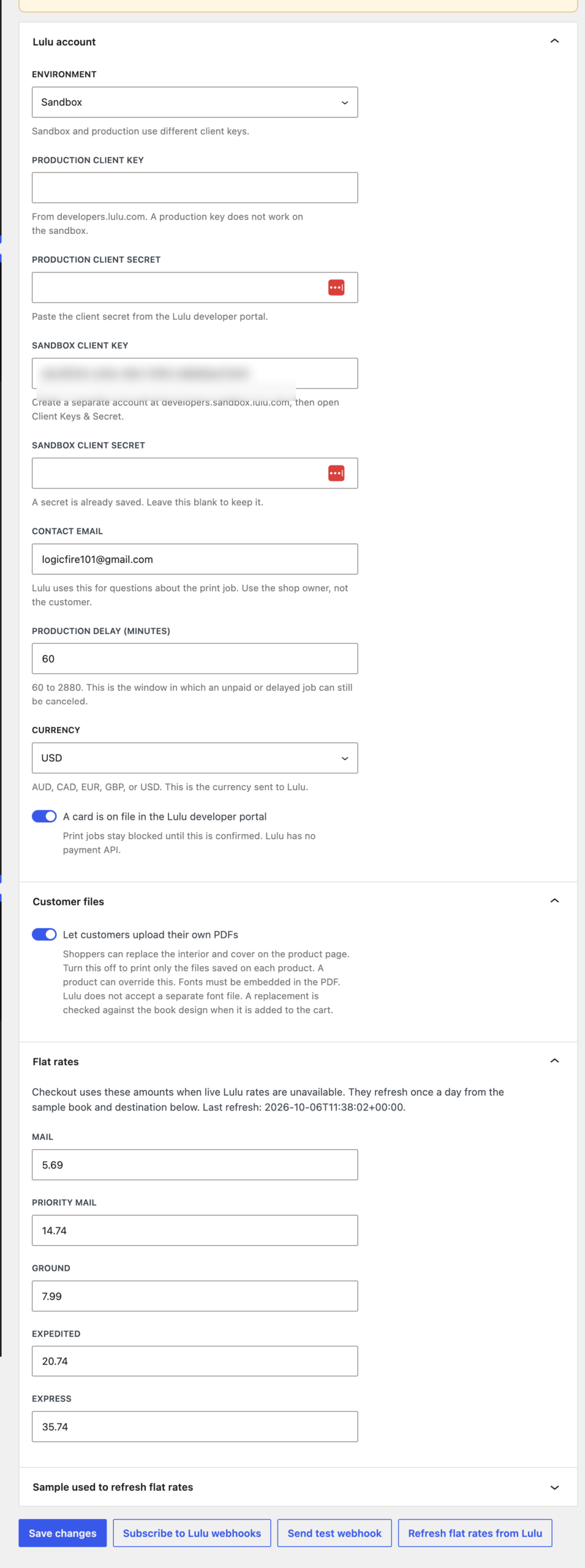
Start with Settings. The Lulu account block is where you choose sandbox or production, add the matching key and secret, set the contact email, currency (AUD, CAD, EUR, GBP or USD) and production delay, and confirm the card on file.
The Let customers upload their own PDFs switch controls uploads for the whole store. When it is on, product pages offer an optional “Use your own files” section. When it is off, the page shows the book facts and prints only the files saved on the product. Any product can override the store with Allow uploads, Print saved files only, or Use store setting.
Flat rates are the safety net. Checkout asks Lulu for live rates, and if that request fails it falls back to five stored amounts: Mail, Priority mail, Ground, Expedited and Express. Those amounts refresh once a day from a sample book and a sample destination that you define, and you can refresh them by hand with Refresh flat rates from Lulu.
Two buttons deal with webhooks. Subscribe to Lulu webhooks registers your store for the print job status change event. If a subscription already exists, it is pointed at the current callback and turned back on. Send test webhook stays disabled until a subscription exists.
Lulu does not offer a catalog endpoint, so the plugin ships a copy of Lulu’s print API spec sheet, extracted on 5 October 2026. It holds 3,277 package ids. You do not have to memorize any of them.
A simple product gets a Print with Lulu tab in the product data box. A variable product gets the same fields on each variation. The tab asks for the parts of a book, and each list only offers combinations that actually exist in the spec sheet:
When your choices match a package, the POD package id field fills itself in. You can also paste a dotted id directly. A legacy 27 character id is converted to dotted form when you save, and an id that is not in the spec sheet is rejected with a note to choose options instead.
Every package has a page range. If a design prints exactly one count, the page count field is filled in and locked. If it allows a range, you enter a number inside that range, and the help text tells you the limits, for example that a design prints from 2 to 470 pages. Lulu’s interior validation can also write the detected page count back onto the product when it fits the range.
Each file has its own drop zone, and a saved file can be opened straight from the product screen. When you save a product that has both a package and a file, the plugin asks Lulu to validate the interior and the cover. Cover validation needs the interior page count, because spine width depends on it. The plugin also requests the cover dimensions in inches and stores them for the product page.
Validation can still be running when the product screen comes back. If so, a note asks you to update the product again in a moment. Any error from Lulu is shown in plain text on the product, not as a block of raw JSON.
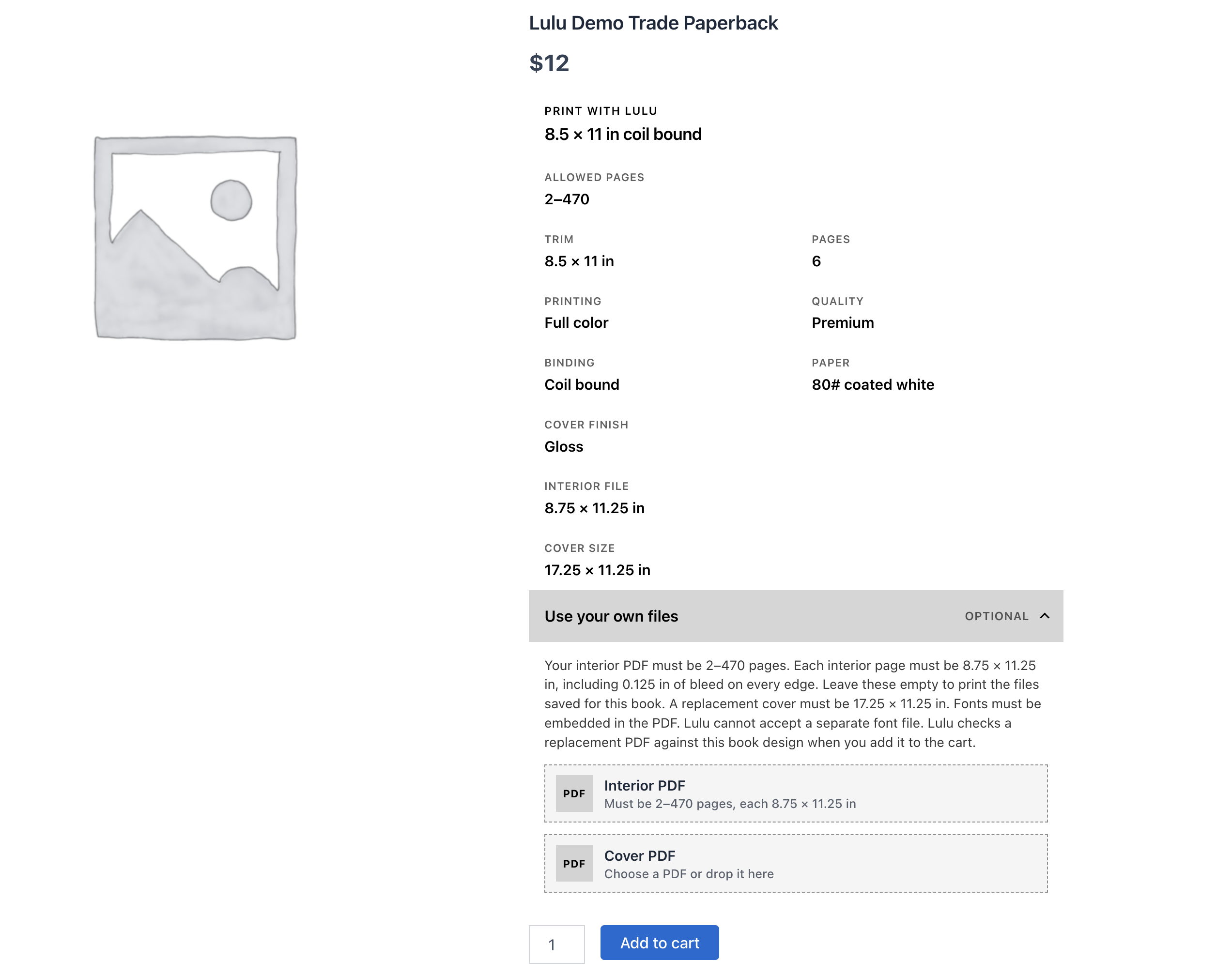
A mapped product shows a book panel above the add to cart button. It opens with a short lead line built from the trim and binding, such as “8.5 × 11 in coil bound”, followed by a grid of facts: allowed pages, trim, pages, printing, quality, binding, paper, cover finish, and the file sizes Lulu expects.
Interior bleed is 0.125 inches on every edge, which is why an 8.5 × 11 inch trim needs an interior page of 8.75 × 11.25 inches. The panel says this in plain language so shoppers do not have to work it out themselves.
When uploads are allowed, the panel ends with a disclosure labeled Use your own files and tagged Optional. It opens by default if the product has no saved files. Inside, the note tells the shopper:
Each field accepts a PDF by click or drag, shows the file name, and can be cleared. A file that is not a PDF is rejected on the page before the form is submitted.
Adding to the cart triggers local checks first, then Lulu’s validation API. Locally, the plugin confirms the file is a PDF, that fonts are embedded (the message names the ones that are not), and that interior pages match the expected size within 0.02 inches. Mixed page sizes are called out, and the message explains that the extra 0.125 inches is bleed Lulu trims off.
Lulu then validates the uploaded interior and cover against the package. If a shopper uploads a new interior with a different page count and keeps the saved cover, the saved cover is validated again, since a different page count changes the spine. A rejected file stays out of the cart with Lulu’s reason in the notice. If Lulu is still checking, the shopper is asked to add the book again in a moment.
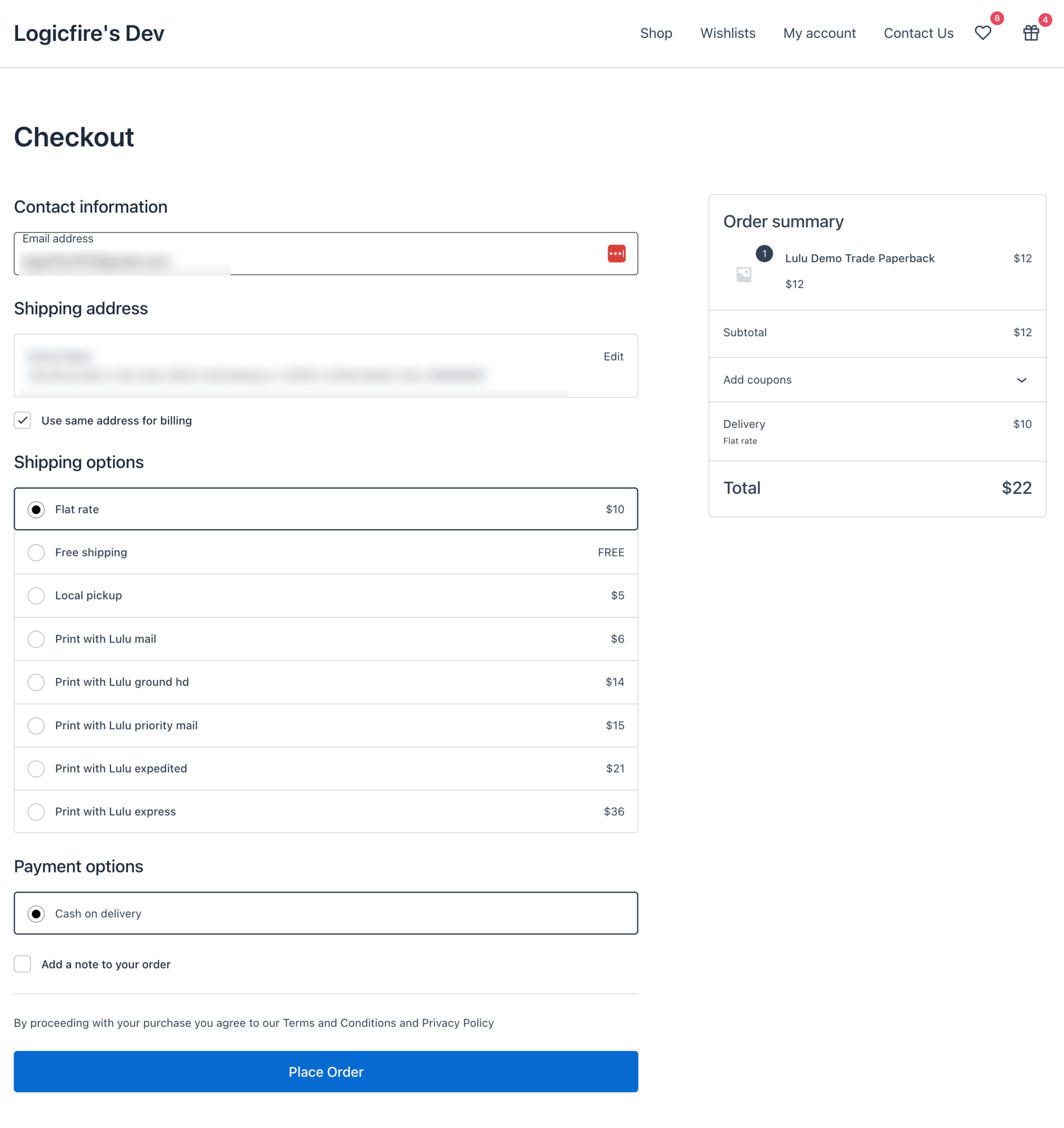
When the cart holds a mapped book, checkout validates the shipping address against Lulu’s rules before the order is placed. It needs a recipient name or organization, street, city and postal code, a two letter country code, a phone number of 8 to 20 characters, and an email address for the carrier. Countries that need a state or subdivision code, including the United States, Canada and Australia, must have one. Brazil, Chile and Mexico also need a recipient tax ID.
To collect that, the plugin adds a required Shipping phone field and an optional Recipient tax ID field to checkout. The tax ID is only enforced for those three countries, and only when the cart contains a book.
This is the part merchants care about most, so here is the full path. Click through the steps below.
One WooCommerce order becomes one Lulu print job. The Lulu external id is the WooCommerce order id, so the same order is never sent twice, and a second attempt is skipped if a create started within the last two minutes.
Each book line goes out with the product title, quantity, package id, and signed URLs for the interior and cover. A shopper’s accepted replacement file is used when there is one, otherwise the file saved on the product. On a later reprint, Lulu’s printable_id is sent instead of the files. The job also carries your contact email, the production delay, the shipping level, the address, and the tax ID when one was collected.
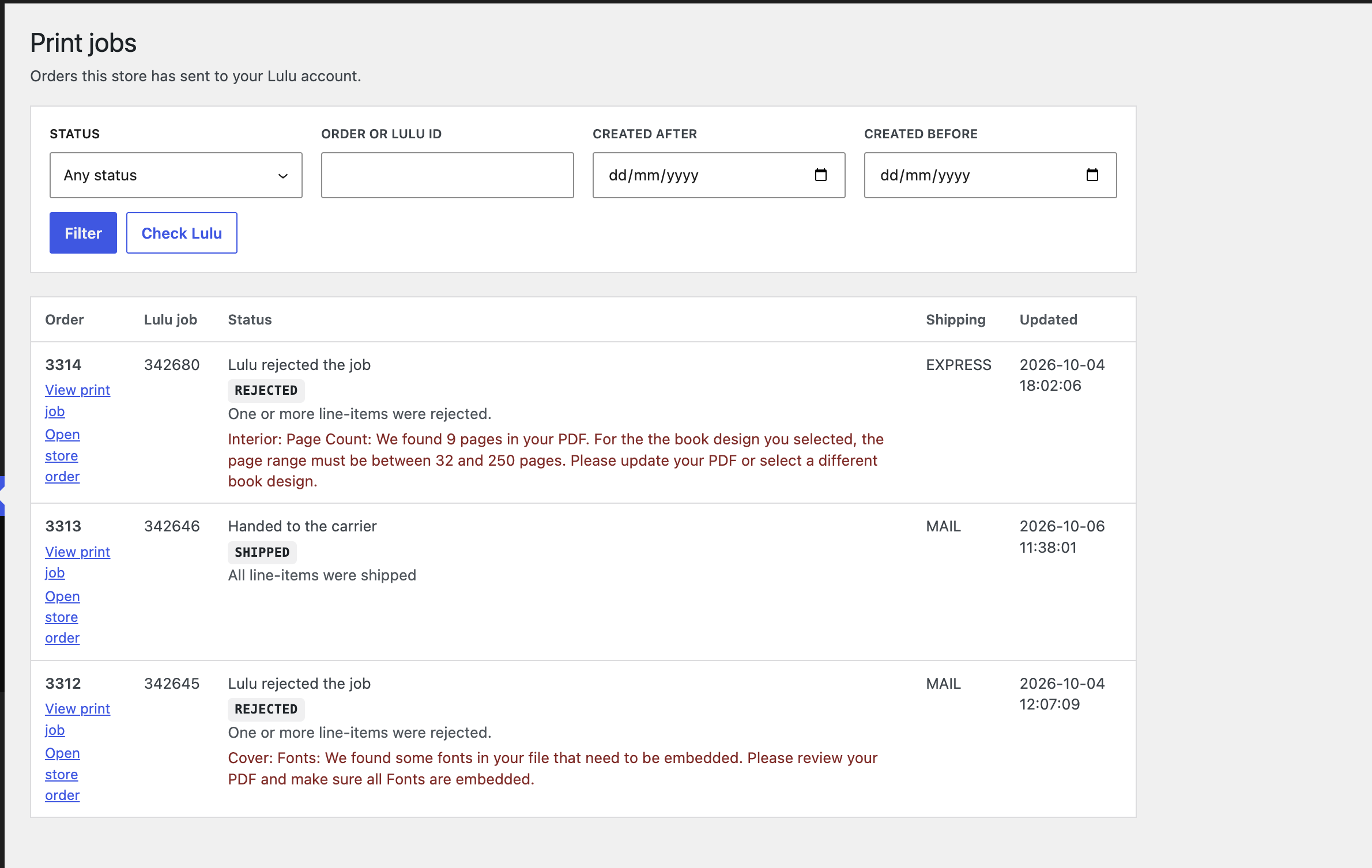
Print with Lulu, then Print jobs lists the orders this store has sent. It does not list every job on your Lulu account, which is deliberate. You get the store order number, the Lulu job id, a plain language status, the shipping level and the last update. You can filter by status, order or Lulu id, and a created after and created before date range, with 25 rows per page.
The screenshot above is a good example of why this screen exists. Order 3313 shipped. Order 3314 was rejected because the uploaded interior had 9 pages, while the book design it was sent against needs 32 to 250. Order 3312 was rejected because fonts in the cover were not embedded. In both cases the reason is right there in the list, without opening a raw API response.
A status update is accepted when it is a later step in that sequence, and jumps are allowed. A job can move from the cancellation window straight to Shipped if printing and shipping both happened since the last check. A backward or unknown jump is refused, and the reason is stored on the job.
When something does not move, go to Diagnostics before anything else. It answers two questions: can this store send a book, and what happened to the last status updates. Check again reloads it.
If no webhook is registered, status still arrives through the hourly check. Every hour, Action Scheduler runs pwl_reconcile. It turns inactive webhooks back on, asks Lulu for the status of every local job that has a Lulu id and is not yet delivered, canceled, rejected, in error or blocked, applies the same transition rules as a webhook, and refreshes the flat shipping rates when a day has passed.
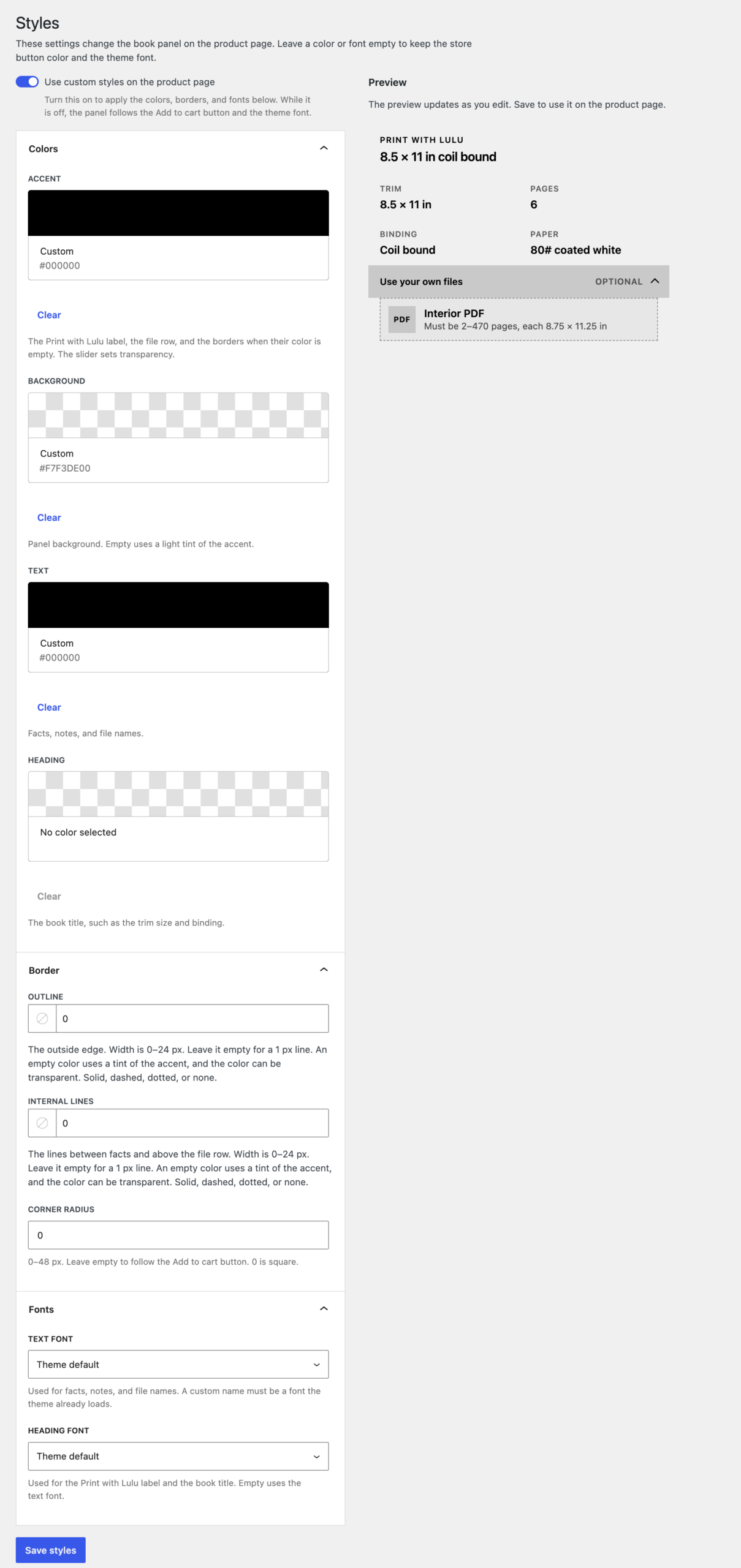
The book panel follows your Add to cart button and theme font by default, which looks right on most themes. If you want more control, Print with Lulu, then Styles lets you change colors, borders and fonts with a live preview. Nothing is applied on the product page until Use custom styles on the product page is on and you save. The preview updates as you edit even while the switch is off.
If you have a catalog of books, mapping them one by one is slow. Bulk mapping writes the package id and page count onto many products from a CSV. It does not upload PDFs and it does not create print jobs.
On disk, interior and cover PDFs live in uploads/print-with-lulu, which is blocked from direct web access. Lulu receives a signed URL that expires after two days, and the signature is checked before the file is sent. The same storage is used for files you upload on the product and files a shopper attaches at add to cart.
If you only read one section, make it this one.